
WebTorrent Desktop
The streaming torrent app. For Mac, Windows, and Linux.



## Install
Download the latest version of WebTorrent Desktop from
[the official website](https://webtorrent.io/desktop/) or the
[GitHub releases](https://github.com/feross/webtorrent-desktop/releases) page.
**WebTorrent Desktop** is under very active development. You can try out the
current (unstable) development version by cloning the Git repo. See the
instructions below in the ["How to Contribute"](#how-to-contribute) section.
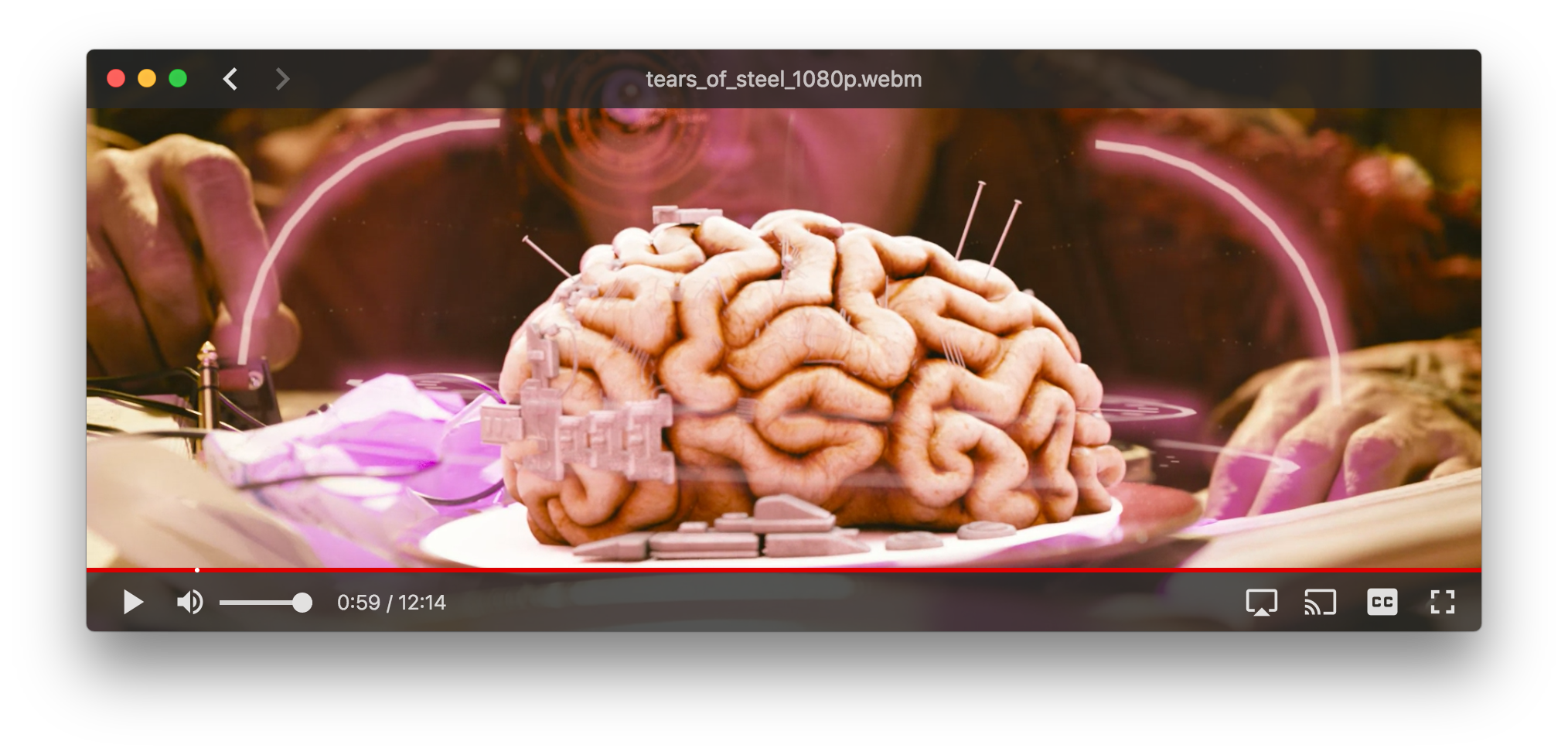
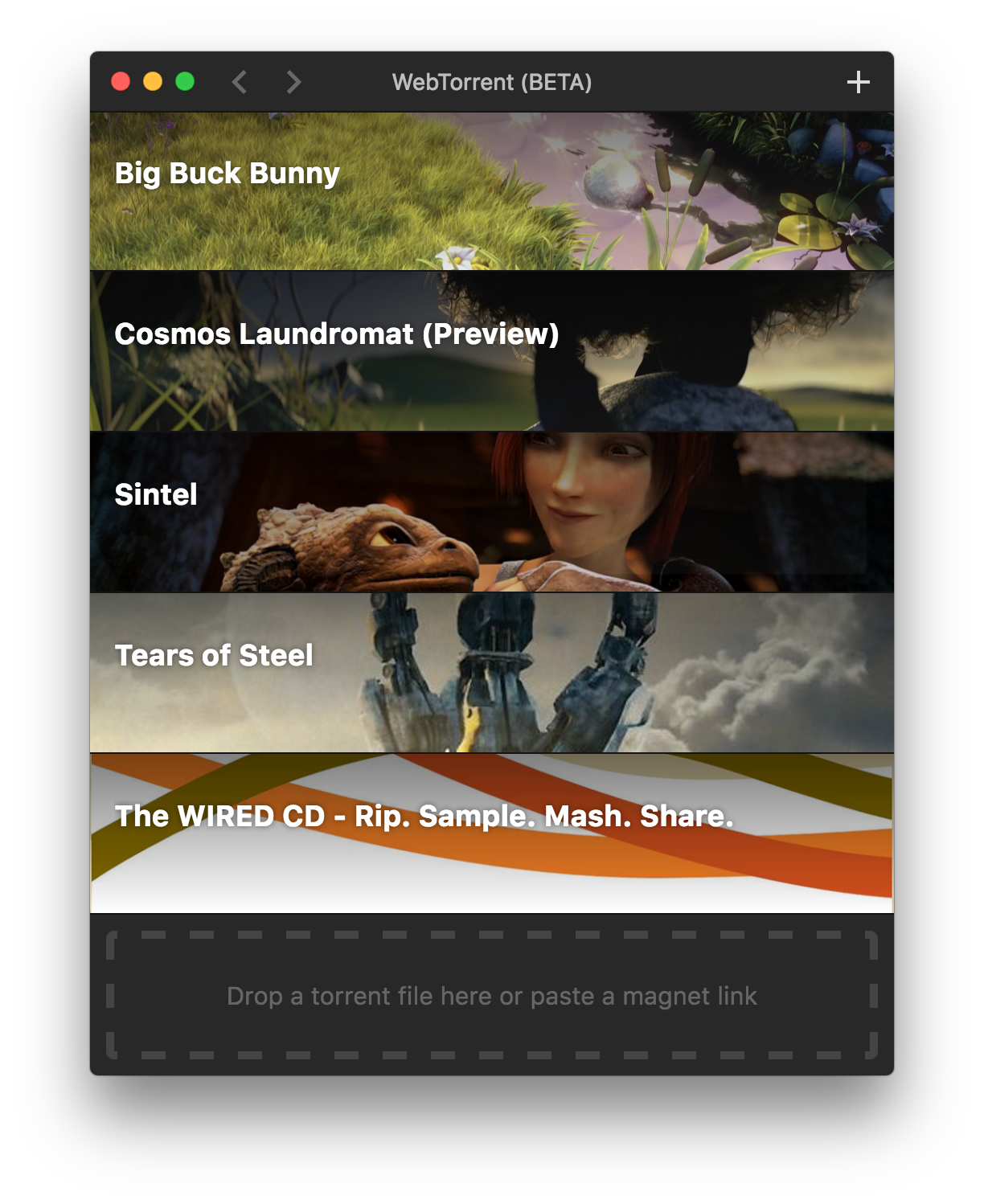
## Screenshots
## How to Contribute
### Get the code
```
$ git clone https://github.com/feross/webtorrent-desktop.git
$ cd webtorrent-desktop
$ npm install
```
### Run the app
```
$ npm start
```
### Watch the code
Restart the app automatically every time code changes. Useful during development.
```
$ npm run watch
```
### Run linters
```
$ npm test
```
### Run integration tests
```
$ npm run test-integration
```
The integration tests use Spectron and Tape. They click through the app, taking screenshots and
comparing each one to a reference. Why screenshots?
* Ad-hoc checking makes the tests a lot more work to write
* Even diffing the whole HTML is not as thorough as screenshot diffing. For example, it wouldn't
catch an bug where hitting ESC from a video doesn't correctly restore window size.
* Chrome's own integration tests use screenshot diffing iirc
* Small UI changes will break a few tests, but the fix is as easy as deleting the offending
screenshots and running the tests, which will recreate them with the new look.
* The resulting Github PR will then show, pixel by pixel, the exact UI changes that were made! See
https://github.com/blog/817-behold-image-view-modes
For MacOS, you'll need a Retina screen for the integration tests to pass. Your screen should have
the same resolution as a 2016 12" Macbook.
For Windows, you'll need Windows 10 with a 1366x768 screen.
When running integration tests, keep the mouse on the edge of the screen and don't touch the mouse
or keyboard while the tests are running.
### Package the app
Builds app binaries for Mac, Linux, and Windows.
```
$ npm run package
```
To build for one platform:
```
$ npm run package -- [platform] [options]
```
Where `[platform]` is `darwin`, `linux`, `win32`, or `all` (default).
The following optional arguments are available:
- `--sign` - Sign the application (Mac, Windows)
- `--package=[type]` - Package single output type.
- `deb` - Debian package
- `zip` - Linux zip file
- `dmg` - Mac disk image
- `exe` - Windows installer
- `portable` - Windows portable app
- `all` - All platforms (default)
Note: Even with the `--package` option, the auto-update files (.nupkg for Windows,
-darwin.zip for Mac) will always be produced.
#### Windows build notes
The Windows app can be packaged from **any** platform.
Note: Windows code signing only works from **Windows**, for now.
Note: To package the Windows app from non-Windows platforms,
[Wine](https://www.winehq.org/) needs to be installed. For example on Mac, first
install [XQuartz](http://www.xquartz.org/), then run:
```
brew install wine
```
(Requires the [Homebrew](http://brew.sh/) package manager.)
#### Mac build notes
The Mac app can only be packaged from **macOS**.
#### Linux build notes
The Linux app can be packaged from **any** platform.
### Privacy
WebTorrent Desktop collects some basic usage stats to help us make the app better.
For example, we track how well the play button works. How often does it succeed?
Time out? Show a missing codec error?
The app never sends any personally identifying information, nor does it track which
torrents you add.
### Code Style
[](https://github.com/feross/standard)
## Release Procedure
### 1. Create a new version
- Update `AUTHORS`
```
npm run update-authors
```
Commit if necessary. The commit message should be "authors".
- Write the changelog
You can use `git log --oneline ..HEAD` to get a list of changes.
Summarize them concisely in `CHANGELOG.md`. The commit message should be "changelog".
- Update the version
```
npm version [major|minor|patch]
```
This creates both a commit and a git tag.
- Make a PR
Once the PR is reviewed, merge it:
```
git push origin :master
```
This makes it so that the commit hash on master matches the commit hash of the version tag.
Finally, run:
```
git push --tags
```
### 2. Create the release binaries
- On a Mac:
```
npm run package -- darwin --sign
npm run package -- linux --sign
```
- On Windows, or in a Windows VM:
```
npm run package -- win32 --sign
```
- Then, upload the release binaries to Github:
```
npm run gh-release
```
Follow the URL to a newly created Github release page. Manually upload the binaries from
`webtorrent-desktop/dist/`. Open the previous release in another tab, and make sure that you
are uploading the same set of files, no more, no less.
### 3. Test it
**This is the most important part.**
- Manually download the binaries for each platform from Github.
**Do not use your locally built binaries.** Modern OSs treat executables differently if they've
been downloaded, even though the files are byte for byte identical. This ensures that the
codesigning worked and is valid.
- Smoke test WebTorrent Desktop on each platform.
See Smoke Tests below for details. Open DevTools
on Windows and Mac, and ensure that the auto updater is running. If the auto updater does not
run, users will successfully auto update to this new version, and then be stuck there forever.
### 4. Ship it
- Update the website
Create a pull request in [webtorrent.io](https://github.com/feross/webtorrent.io). Update
`config.js`, updating the desktop app version.
As soon as this PR is merged, Jenkins will automatically redeploy the WebTorrent website, and
hundreds of thousands of users around the world will start auto updating. **Merge with care.**
## Smoke Tests
Before a release, check that the following basic use cases work correctly:
1. Click "Play" to stream a built-in torrent (e.g. Sintel)
- Ensure that seeking to undownloaded region works and plays immediately.
- Ensure that sintel.mp4 gets downloaded to `~/Downloads`.
2. Check that the auto-updater works
- Open the console and check for the line "No update available" to indicate
3. Add a new .torrent file via drag-and-drop.
- Ensure that it gets added to the list and starts downloading
4. Remove a torrent from the client
- Ensure that the file is removed from `~/Downloads`
5. Create and seed a new a torrent via drag-and-drop.
- Ensure that the torrent gets created and seeding begins.
## License
MIT. Copyright (c) [WebTorrent, LLC](https://webtorrent.io).